

Prerequisites
Ensure you have an image in your Library and available credits. The tool supports JPEG, PNG, HEIC, TIFF, WebP, and GIF formats.How it works
The AI identifies subjects and separates them from backgrounds automatically, handling edge detection, hair details, and complex boundaries without manual selection.Visual examples

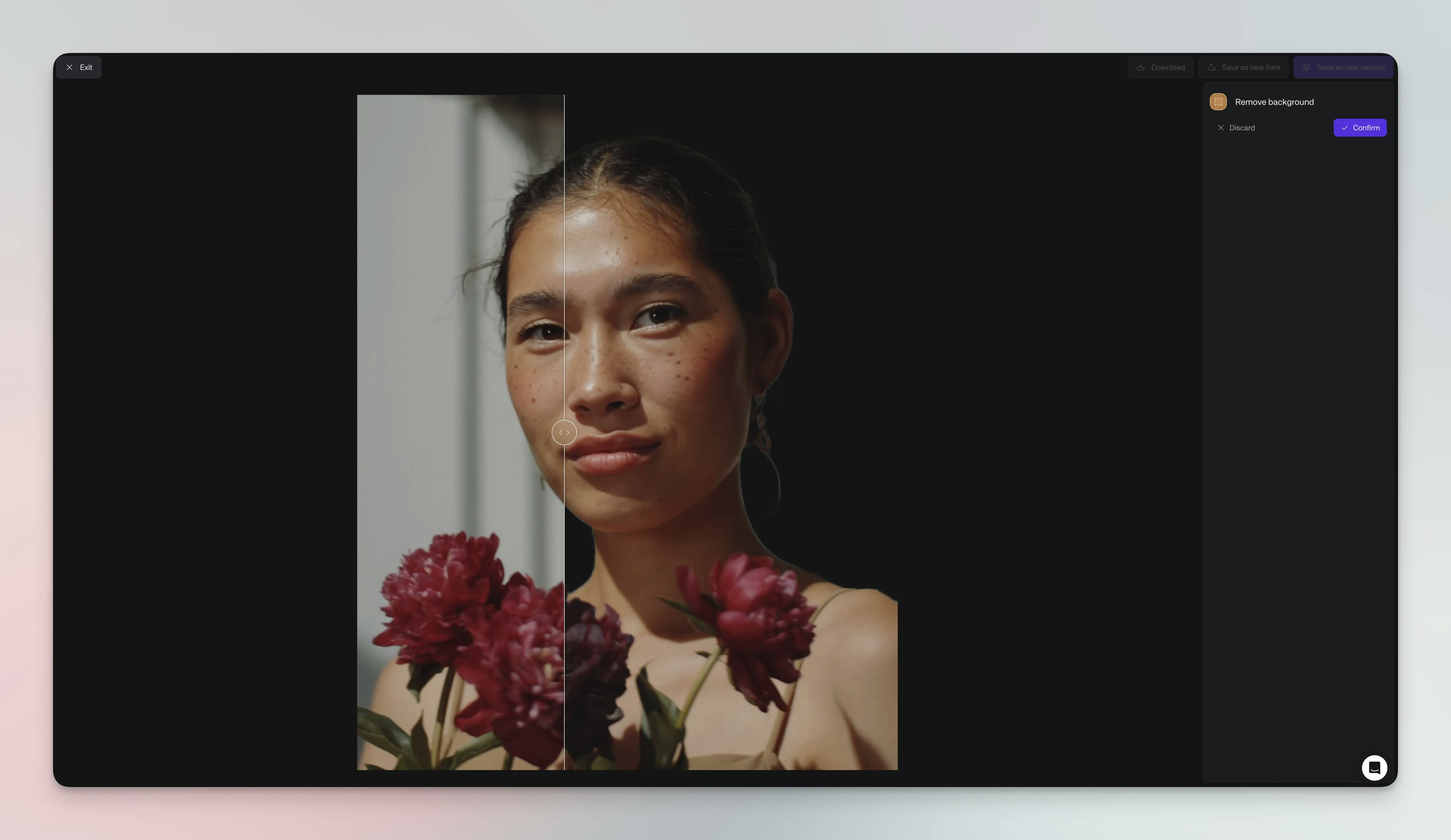
Steps
1
Open Your Image
Navigate to the image in your Library or board and click to open it in
detail view
2
Open Agent
Click Edit in the item detail view, or open Agent and attach the
image manually
3
Describe the edit
Ask Agent to remove the background and create a transparent PNG
4
Process the Image
The AI will process your image (typically takes ~15 seconds)
5
Review Results
Preview the transparent result with a checkerboard pattern showing
transparency
6
Save Your Work
Click Save to add the transparent result to your Library as a new PNG
file
The original image remains unchanged. Background removal creates a separate
transparent PNG result you can save to your Library or a board.
Results
The tool preserves main subjects, fine details like hair and fabric edges, semi-transparent elements, and complex boundaries. Output creates PNG files with full alpha channel transparency, matching original resolution with lossless compression.Use cases
Common applications span e-commerce, creative design, and professional photography. E-commerce - Create clean catalog images for storefronts, marketing materials, and white background requirements. Design - Isolate subjects for social media graphics, marketing collages, and digital art projects. Portraits - Prepare headshots for team directories, LinkedIn profiles, and virtual backgrounds.Tips
For best results, use high-contrast images with clear subject-background separation, good lighting, and sharp focus. Higher resolution yields better detail preservation. Challenges arise with similar subject-background colors, complex patterns, or transparent objects like glass that require extra processing.Credit usage
Free plans include limited credits. Monitor your usage in Settings →
Billing.
Work with transparent images
After removal, download transparent PNGs for external use, save to boards, or use the transparent result as a reference. If a follow-up edit also needs transparency, remove the background again after that edit. Combine with other edits: ask Agent to add a new backdrop, extend the image, or use the transparent result as a reference in a new generation.Troubleshooting
Edge Issues - Ensure sufficient resolution and contrast. Ask Agent for a follow-up edit if the result needs refinement. Partial Removal - Complex patterns or thin elements may confuse AI. Try source images with clearer definition. Performance - Use images under 10MB with stable internet for faster processing.See also
Change Background
Add new backgrounds to your isolated subjects
Edit images with Agent
Refine the result with a follow-up prompt
Editing with Agent
Explore editing requests and credit costs