

Describing people in your images
You can describe people directly in your prompts without needing any special setup. Simply include details about the person’s appearance, age, clothing, or pose. For example:- “worn by 25 year old woman with long brown hair”
- “male model in athletic wear”
- “65 year old man with deep wrinkles wearing hiking gear”
- “woman with short blonde hair in business attire”
@modelname) when you need the exact same specific person to appear consistently across multiple generations. Character models require training with photos of one individual and are designed for consistency, not variety.
Build effective prompts
Think in four parts, then compress to one sentence: subject, context, style, and a technical hint. Example formula:[Subject], [Context], [Style], [Lighting/Composition detail].
Examples:
- Modern armchair in a sunlit living room, mid‑century modern style, soft backlight, overhead angle.
- 35 year old woman in business attire in a downtown office, cinematic style, 50 mm lens, soft rim light.
- 65 year old weather-beaten man with deep wrinkles wearing hiking gear on a mountain trail, documentary style, natural light.
Use style references
Style references apply the visual aesthetic of one image to your new generation. To use an image from your library or the Discover page as a reference, right‑click it and choose Attach as reference. This opens the image generator with the image attached to your prompt. Similarly, choose Use prompt to insert the original prompt from a Kive generation as a starting point. For uploaded photos, click Generate prompt to let Kive draft a detailed description of the image. Edit the generated text as needed, then add your own subject or scenario.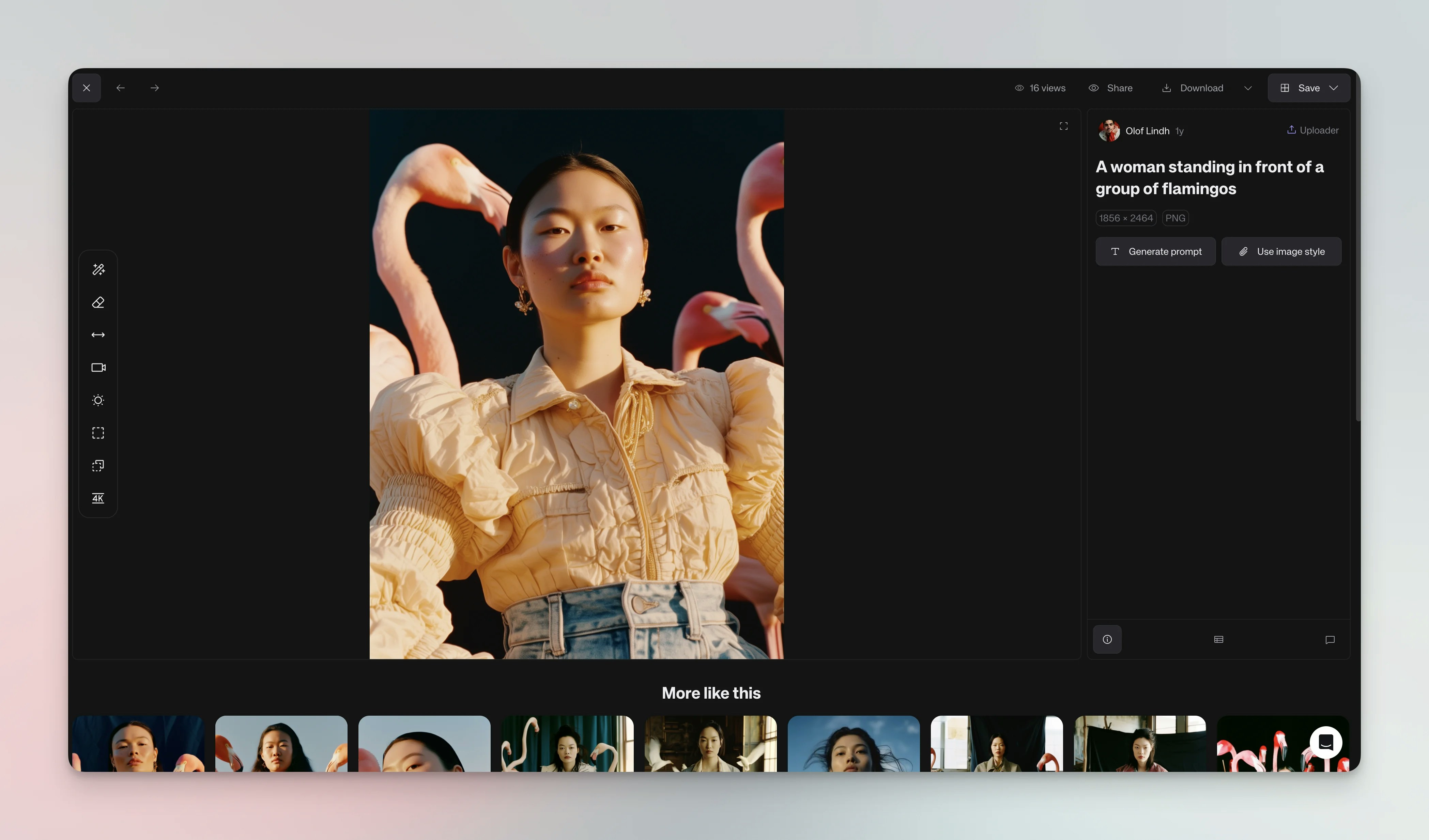
Advanced techniques
Multi-product shots: Tag multiple products or characters in a single prompt like@product1, @product2, @product3 or @character1, @character2 to create scenes with multiple trained models together.
Studios and models: Combine product or character models (@modelname) with a style reference and a studio for precise control.
Positive prompting: Focus on what you want rather than what you want to avoid. Instead of “no blurry text”, use “sharp text” or “crisp lettering”. Instead of “no dark lighting”, use “bright lighting” or “well-lit scene”. Describing the desired outcome produces better results than trying to exclude unwanted elements.
Iterate: Generate drafts, review, and adjust your prompt. Save good prompts to boards for reuse.
Example prompts
Product photography: Minimalist skincare bottle on marble counter, mid‑century style, soft morning light, overhead angle. Portrait with character model:@ada in an office, cinematic style, 50 mm lens, soft rim light.
Portrait with age specification: 40 year old dark-haired woman with wide-set eyes wearing athletic wear, outdoor setting, natural light.
Cinematic scene: Foggy forest at dawn, golden light through trees, wide landscape shot.