

How it works
The AI detects and separates subjects from backgrounds, then generates new environments based on your description. Fine details like hair and fabric edges are preserved through automatic masking, natural lighting integration, perspective matching, and edge preservation.Before and after

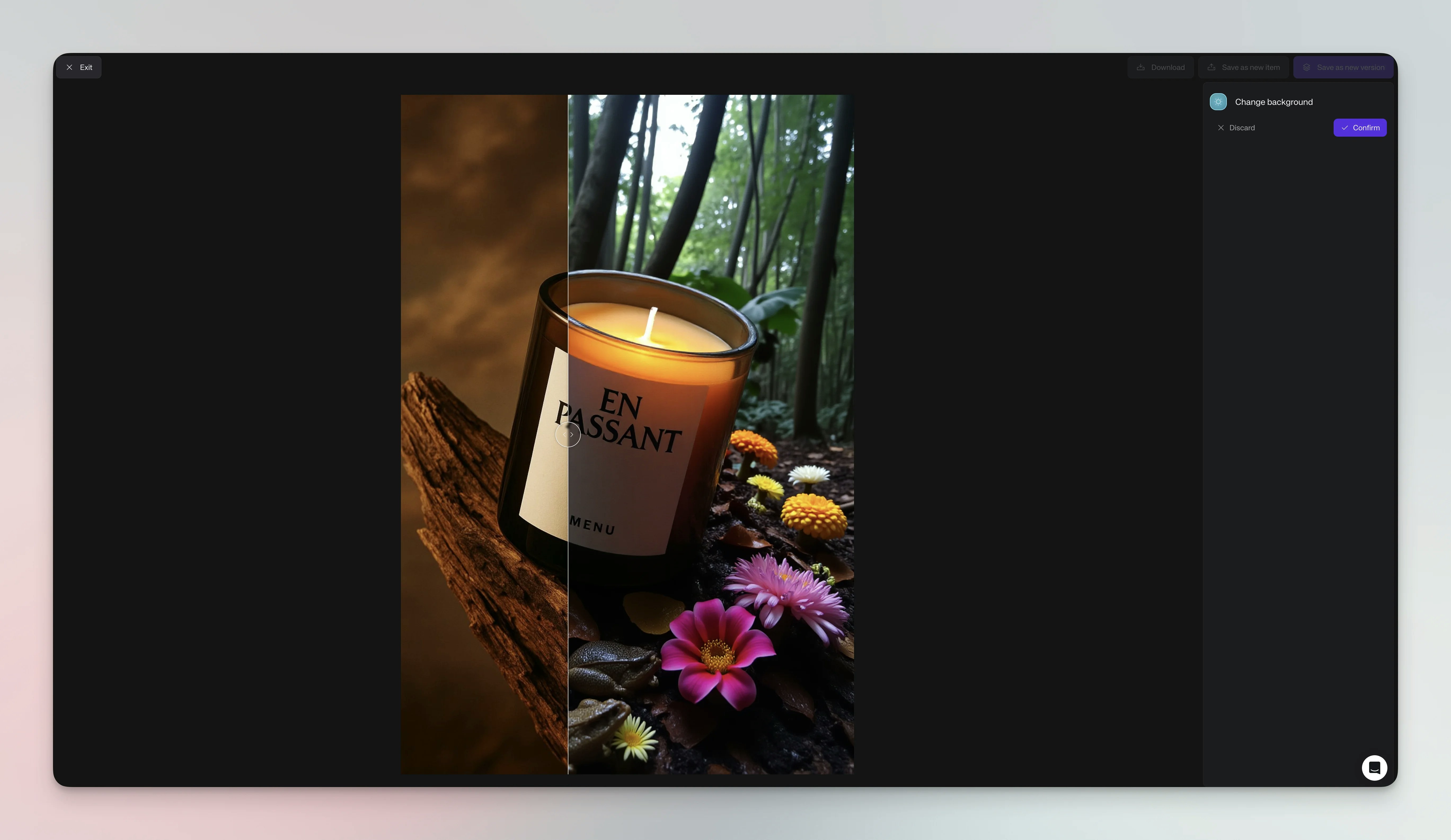
Steps
Transform backgrounds in seven steps:- Open your image - Navigate to the image in your Library or board and click to open it in detail view
- Open Agent - Click Edit in the item detail view, or open Agent and attach the image manually
- Let AI detect - The system automatically identifies and masks your main subject
- Describe the scene - Enter a detailed description of your desired background environment
- Send - Submit the request to create the new background
- Preview results - Review the edited result
- Save the image - Click Save to add the result to your Library
Options
Create better backgrounds by describing environment type (indoor, outdoor, studio), lighting conditions (bright, moody, golden hour), color palette, style preferences, and specific details like architecture or textures.Tips
Achieve professional results with specific descriptions that match your subject’s lighting. Start with simple environments before complex scenes and always zoom in to verify clean edge separation.Credit usage
Background changes use 10 credits per operation.
See also
- Remove Background - Completely isolate subjects
- Editing with Agent - Complete guide to editing requests and credit costs