

Steps
1
Open bulk generate
Go to Create, click the + button in the generation bar and choose Bulk.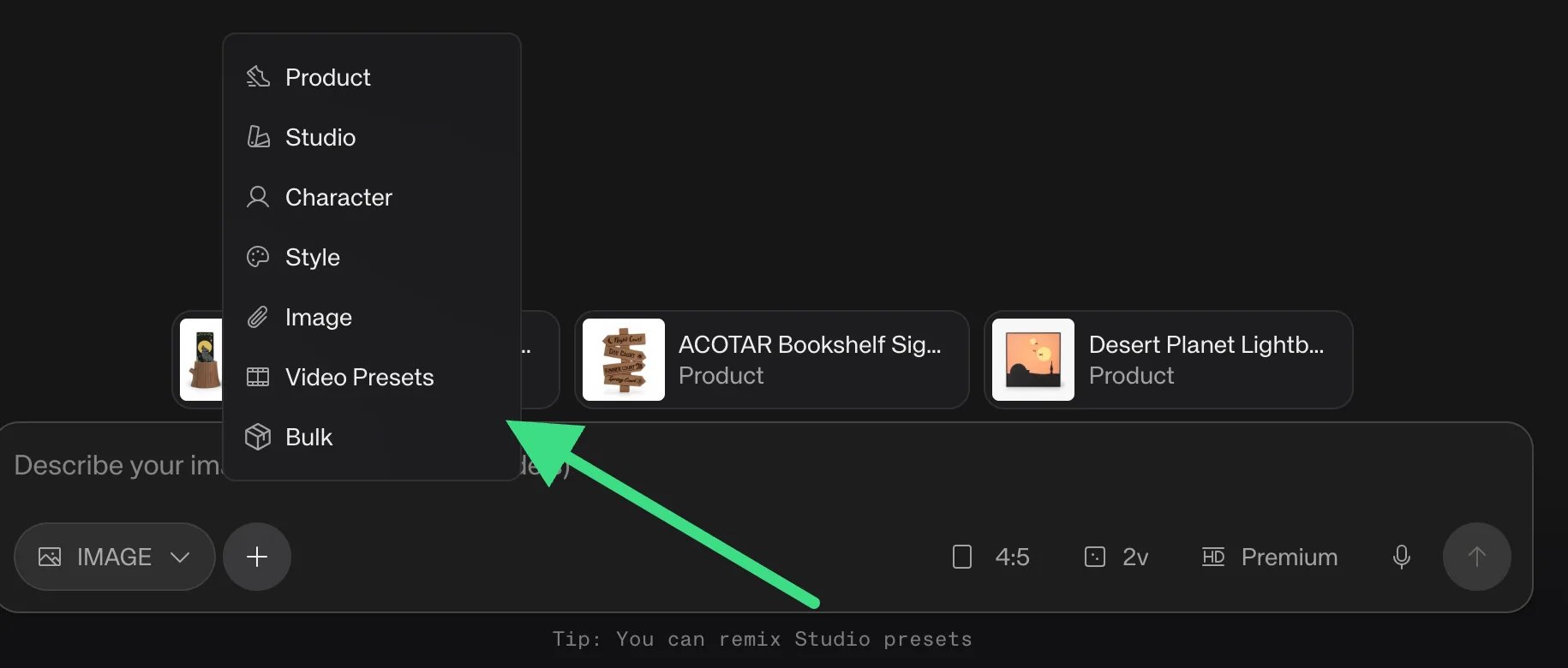
2
Select products
Choose the products you want to include. Use search to find specific products, then click Continue.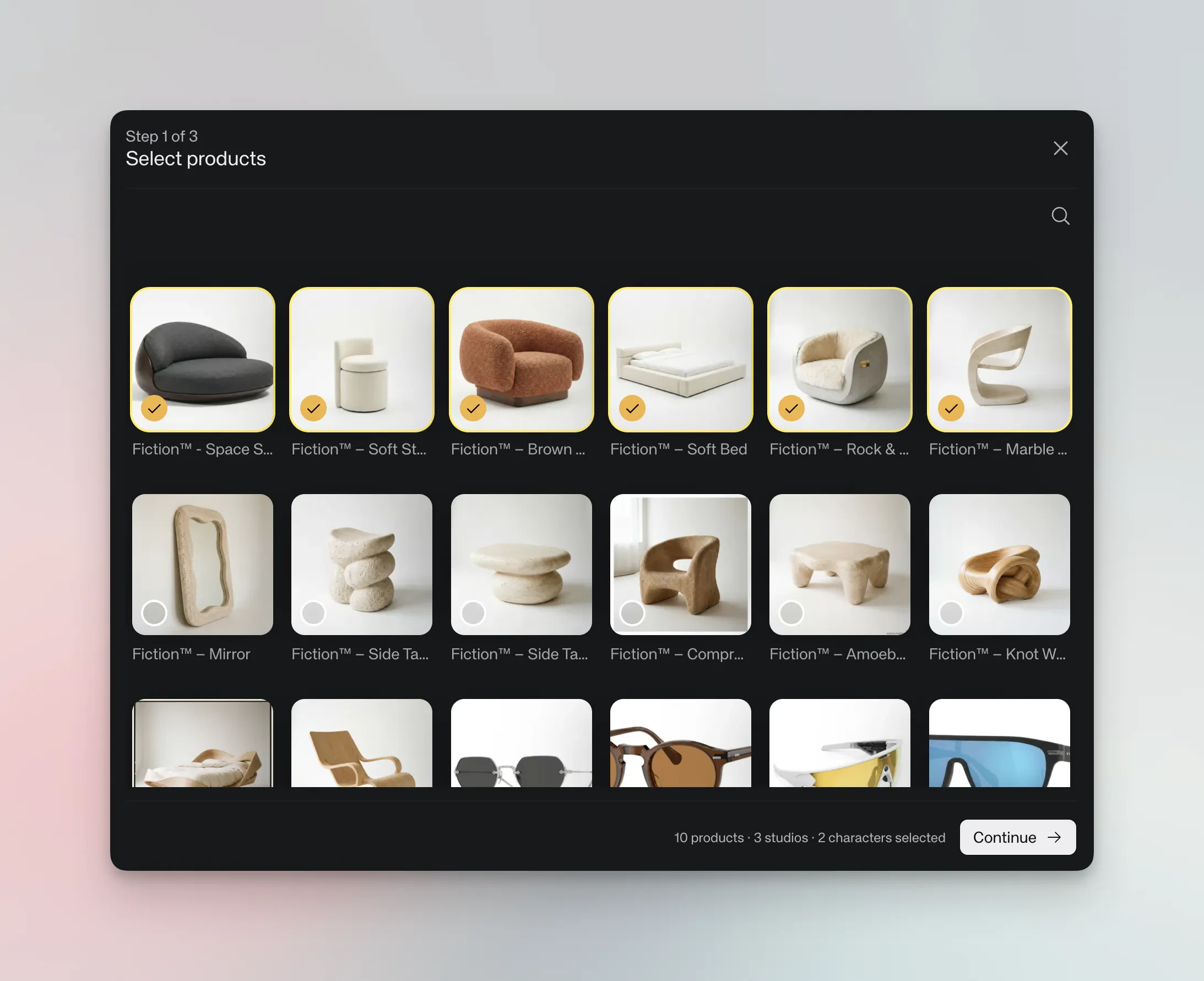
3
Pick a studio preset
Select a studio preset to apply to all products. This determines lighting, background, and overall style. You can browse Discover for community studios or pick from My Studios.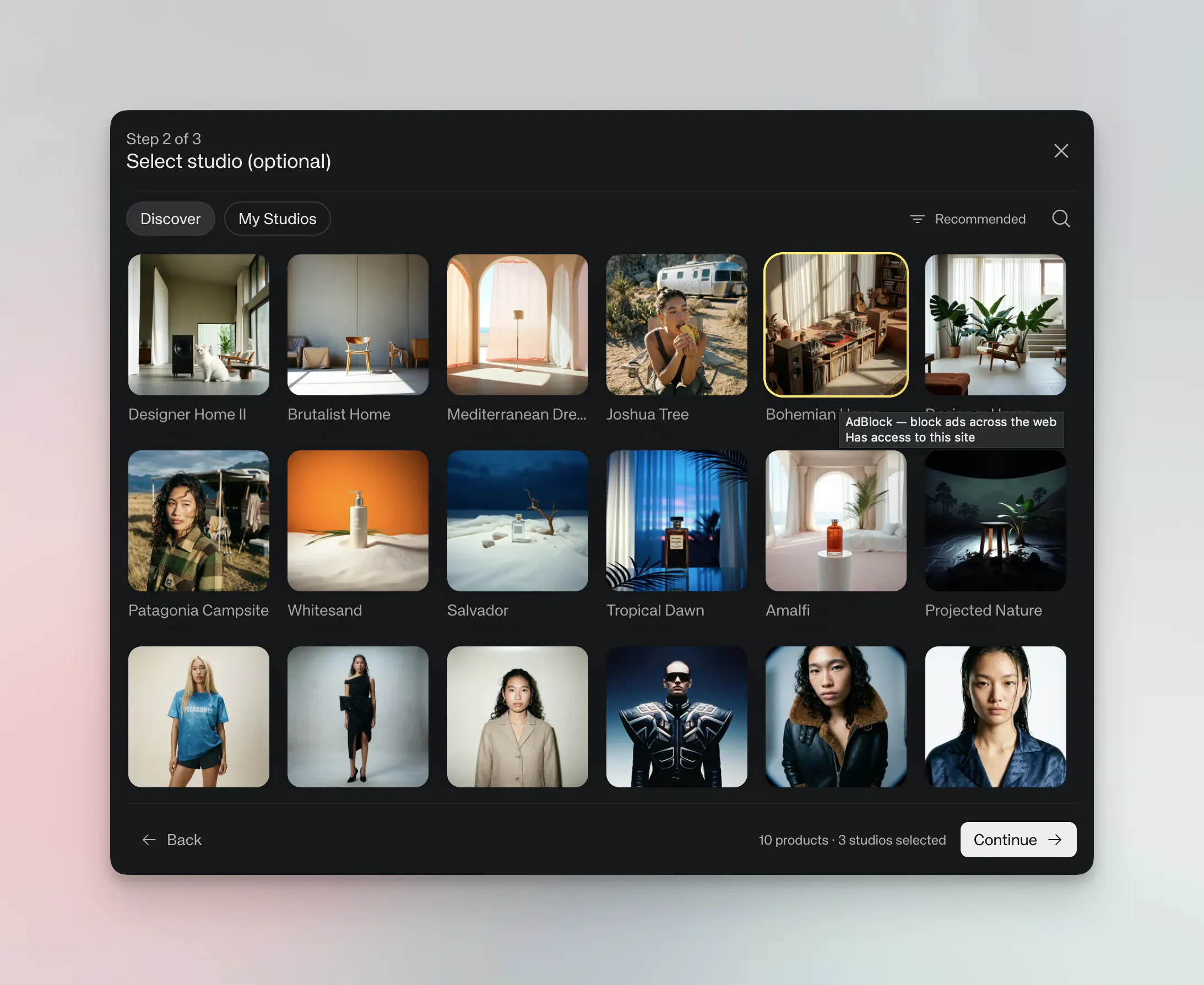
4
Review and customize
Review all products in your bulk generation. Each line item shows the assigned product, studio, and character. From here you can customize individual items before generating: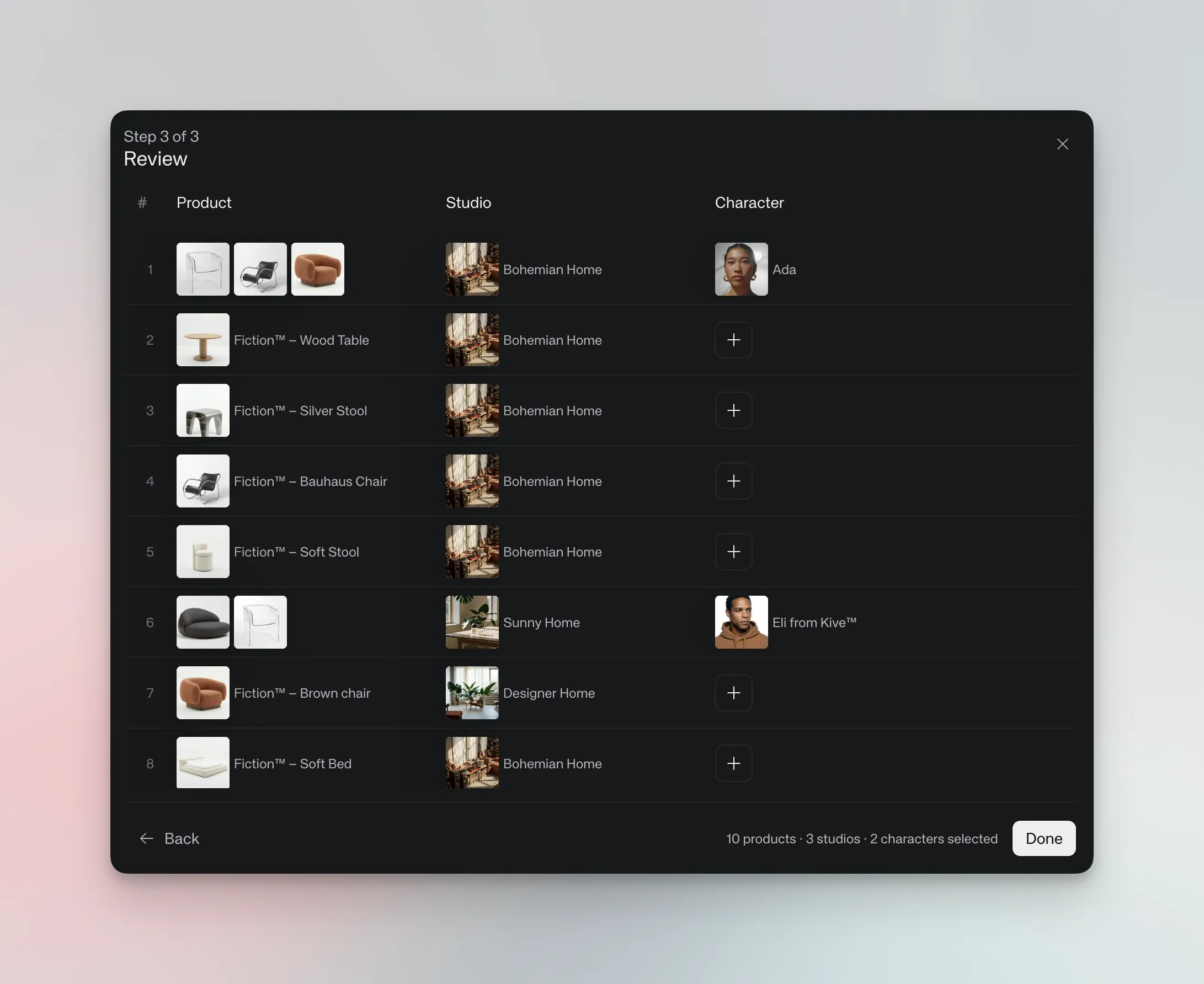
- Change studios individually — assign a different studio preset to specific products
- Add character models — include character models for individual line items
- Combine products — add multiple products to the same line item for multi-product shots
5
Add a prompt and generate
Add an optional custom prompt — it applies to all generations, so use it for details you want across every output. Set your aspect ratio and number of versions. In bulk generation, versions multiply by each line item — selecting 2 versions for 10 products generates 20 images. Confirm to start generating.
Tips
Start small. Test your settings on a few products before running a large batch. This saves credits and helps you refine your approach. Use consistent studios. For brand consistency, apply the same studio preset across your entire catalog. You can always override individual items in the review step. Combine products for styled shots. Add multiple products to the same line item to create multi-product compositions — great for “shop the look” imagery.Each generated image costs credits. In bulk generation, the total cost equals the number of line items multiplied by versions per item. Check your credit balance before starting large batches.