5 Pebblely Alternatives for AI Product Photos in 2026
By Olga Stogova
11 min read
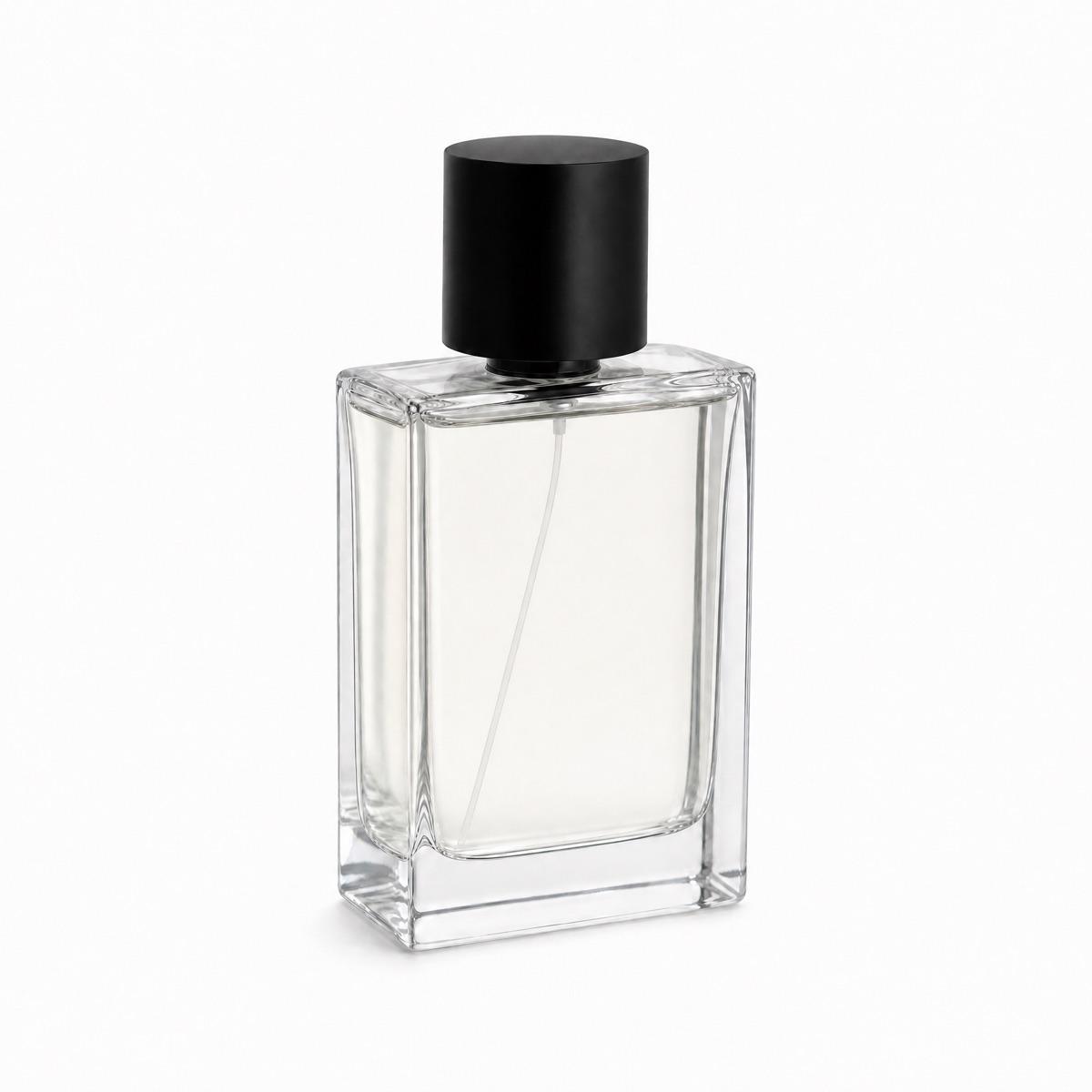
Cut the product out and keep the background empty — a PNG you can drop onto anything.
Click "Start from a photo" and pick a PNG or JPG of any size. The cutout runs in your browser, so the image is never uploaded to a server.
The background stays empty once it has been removed. Pick a color from the swatches or the picker if you would rather have one filled in.
Download a PNG with the background already composited in, ready for a listing, a deck or an ad.
A transparent PNG is the version worth keeping. Any flat color can be added later, but it cannot be taken back out, so the cutout with an empty background is the file that survives a rebrand, a new campaign palette or a designer who needs the product on their own layout.
Design handoffs, decks, banners, packaging mockups and anything where the background color is decided later or changes per placement.
Transparency is not universal. Marketplaces usually want a filled background on the main image, JPG cannot hold an alpha channel at all, and some email clients render transparency as black — fill the color in for those, and keep the PNG as the master.
What file do I get?
Why does my transparent image show a black background?
Does the cutout handle hair and fine edges?
Backgrounds are the easy part
Kive generates the whole product shot — scene, lighting and all — from photos of what you actually sell.