> ## Documentation Index
> Fetch the complete documentation index at: https://kive.ai/docs/llms.txt
> Use this file to discover all available pages before exploring further.
# Start from an idea
> Browse Ideas on your home page and remix one with your own product
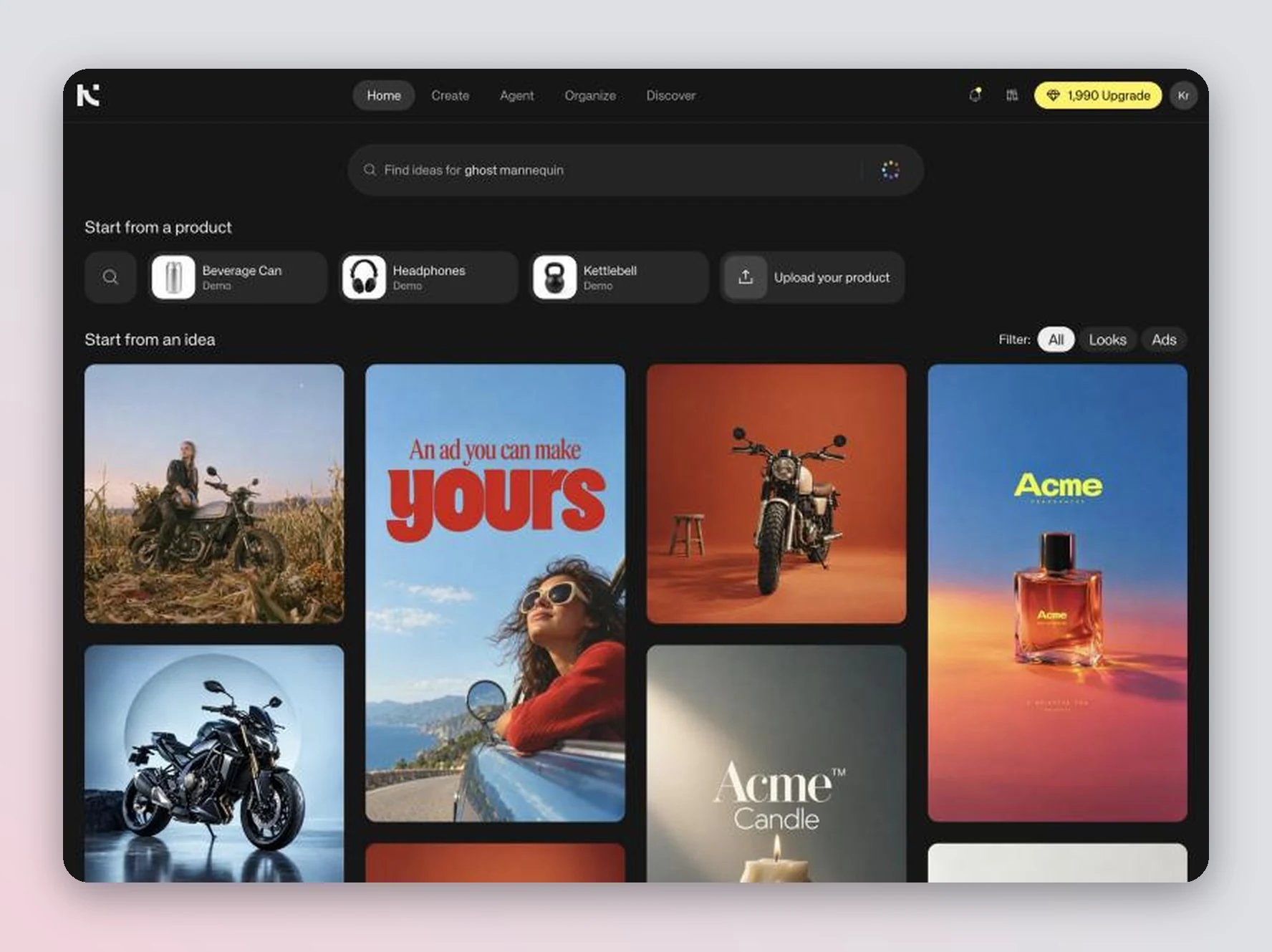
Ideas is a feed of ready-made creative ideas on your workspace home page: product photos, looks and ads. Pick one, add your product, and Agent recreates it in that exact style. The composition, framing, light and mood stay the same.
 Ideas are royalty-free and yours to use commercially. Anything you add to an idea, such as your product, text or logo, is your responsibility.
## Before you start
* Open your workspace. Ideas is the home page.
* Add a product to your library so you can swap it in, or upload a product photo while you remix (see [Train a custom model](/docs/creating-with-ai/train-a-custom-model)).
* Remixes run in Agent and use credits like any other generation (see [Plans and credits](/docs/account-workspace-settings/plans-and-credits)).
The first time you open Ideas, an intro explains how it works. Click **Show me** for a short guided tour, or **Skip**.
## Find an idea
The page opens on **Start from an idea**, a feed of ideas picked for your product categories.
* **Filter** — switch between **All**, **Looks** (clean product and fashion photos) and **Ads** (images with text, such as posters and social ads).
* **Search** — type what you want in the search bar ("Find ideas for…") and press **Enter**. Click the search bar to see **Ideas for you** and your **Recent searches**.
* **Search by image** — drop an image onto the search bar to find ideas that look like it.
* **Search by color** — use the color picker in the search bar to find ideas in a color.
* **Start from a product** — click one of your products in the row under the search bar to see ideas that suit it. Click **Upload your product** to add a new one.
Active filters show next to **Ideas for:** above the feed. Clear them one at a time or all at once.
At the end of the feed you'll see **Can't find the right idea?**, and a search with no matches shows **No results found**. Click **Request an idea** to tell us what you want to create, and we'll add ideas for it. Click **Clear filters** to widen an empty search.
## Remix an idea
Click an idea to open it. What you can do depends on the kind of idea.
Click **Swap in your product**. Pick a product from **Your products**, or click **Upload a product photo**. The product is added to the prompt.
Add anything you want to change in the prompt, for example "on a snowy background".
Send the prompt. Agent puts your product into the image and keeps the rest of the scene.
Click **Make this ad yours**. Agent opens with the ad attached.
Answer Agent's question: the text, the product, the person or the style. The layout, lighting and mood stay.
You can also skip the button and type into **Or describe your change**. Sending starts a new Agent chat with your message and the idea attached.
Press **⌘ + Enter** (**Ctrl + Enter** on Windows) to send a remix in the background and stay on the idea. A **Generation started** message appears, and you can follow the result in Agent.
Click **?** in the remix panel for a short summary of these options.
## Keep going in Agent
Each remix continues as an Agent chat, so you can refine the result with follow-up messages. For example:
* "Change the headline to 'Open late'"
* "Make the product larger and clearly visible"
* "Do two more versions with different background colors"
* "Turn this image into a video"
See [Chat mode](/docs/creating-with-ai/chat-mode) for everything you can do in the chat.
## More ideas and bookmarks
* **More ideas** — scroll down in an open idea to see similar ideas. Clicking one opens it in the same panel. Your browser's back button returns to the previous idea.
* **Bookmark idea** — click the bookmark on an idea to save it. Bookmarked ideas are in **Organize → My ideas** (see [Library and boards](/docs/library-asset-management/library-and-boards)), and you can add them to a prompt from **+** → **Ideas** in the generator (see [Generate an image](/docs/creating-with-ai/generate-an-image)).
## Tips
* Pick ideas in your product's category. A product that doesn't fit the scene, like a bag in a desk-organizer setup, gives weaker results or makes Agent ask how to place it.
* For small products such as jewelry, belts or socks, ask Agent to make the product the hero so it doesn't get lost in the scene.
* Ads can contain placeholder brand names and prices. Ask Agent to replace them with your own text.
## See also
* [Home](/docs/introduction-getting-started/home)
* [Chat mode](/docs/creating-with-ai/chat-mode)
* [Use the Discover page](/docs/discover-inspiration/use-the-discover-page)
Ideas are royalty-free and yours to use commercially. Anything you add to an idea, such as your product, text or logo, is your responsibility.
## Before you start
* Open your workspace. Ideas is the home page.
* Add a product to your library so you can swap it in, or upload a product photo while you remix (see [Train a custom model](/docs/creating-with-ai/train-a-custom-model)).
* Remixes run in Agent and use credits like any other generation (see [Plans and credits](/docs/account-workspace-settings/plans-and-credits)).
The first time you open Ideas, an intro explains how it works. Click **Show me** for a short guided tour, or **Skip**.
## Find an idea
The page opens on **Start from an idea**, a feed of ideas picked for your product categories.
* **Filter** — switch between **All**, **Looks** (clean product and fashion photos) and **Ads** (images with text, such as posters and social ads).
* **Search** — type what you want in the search bar ("Find ideas for…") and press **Enter**. Click the search bar to see **Ideas for you** and your **Recent searches**.
* **Search by image** — drop an image onto the search bar to find ideas that look like it.
* **Search by color** — use the color picker in the search bar to find ideas in a color.
* **Start from a product** — click one of your products in the row under the search bar to see ideas that suit it. Click **Upload your product** to add a new one.
Active filters show next to **Ideas for:** above the feed. Clear them one at a time or all at once.
At the end of the feed you'll see **Can't find the right idea?**, and a search with no matches shows **No results found**. Click **Request an idea** to tell us what you want to create, and we'll add ideas for it. Click **Clear filters** to widen an empty search.
## Remix an idea
Click an idea to open it. What you can do depends on the kind of idea.
Click **Swap in your product**. Pick a product from **Your products**, or click **Upload a product photo**. The product is added to the prompt.
Add anything you want to change in the prompt, for example "on a snowy background".
Send the prompt. Agent puts your product into the image and keeps the rest of the scene.
Click **Make this ad yours**. Agent opens with the ad attached.
Answer Agent's question: the text, the product, the person or the style. The layout, lighting and mood stay.
You can also skip the button and type into **Or describe your change**. Sending starts a new Agent chat with your message and the idea attached.
Press **⌘ + Enter** (**Ctrl + Enter** on Windows) to send a remix in the background and stay on the idea. A **Generation started** message appears, and you can follow the result in Agent.
Click **?** in the remix panel for a short summary of these options.
## Keep going in Agent
Each remix continues as an Agent chat, so you can refine the result with follow-up messages. For example:
* "Change the headline to 'Open late'"
* "Make the product larger and clearly visible"
* "Do two more versions with different background colors"
* "Turn this image into a video"
See [Chat mode](/docs/creating-with-ai/chat-mode) for everything you can do in the chat.
## More ideas and bookmarks
* **More ideas** — scroll down in an open idea to see similar ideas. Clicking one opens it in the same panel. Your browser's back button returns to the previous idea.
* **Bookmark idea** — click the bookmark on an idea to save it. Bookmarked ideas are in **Organize → My ideas** (see [Library and boards](/docs/library-asset-management/library-and-boards)), and you can add them to a prompt from **+** → **Ideas** in the generator (see [Generate an image](/docs/creating-with-ai/generate-an-image)).
## Tips
* Pick ideas in your product's category. A product that doesn't fit the scene, like a bag in a desk-organizer setup, gives weaker results or makes Agent ask how to place it.
* For small products such as jewelry, belts or socks, ask Agent to make the product the hero so it doesn't get lost in the scene.
* Ads can contain placeholder brand names and prices. Ask Agent to replace them with your own text.
## See also
* [Home](/docs/introduction-getting-started/home)
* [Chat mode](/docs/creating-with-ai/chat-mode)
* [Use the Discover page](/docs/discover-inspiration/use-the-discover-page)